How to find what you have not read in Skiml
Brandon Ard · October 20, 2026 · 4 min read
The library grows faster than you read it. That is not a problem with discipline, it is a problem with tooling. Until now there was no quick way to see only what you had not touched yet, or to pull up everything you brought over from another tool. Version 1.4 fixes both.
The Unopened filter
One click on the Unopened chip narrows your library to saves you have never opened. That is it. No search query, no tag gymnastics.
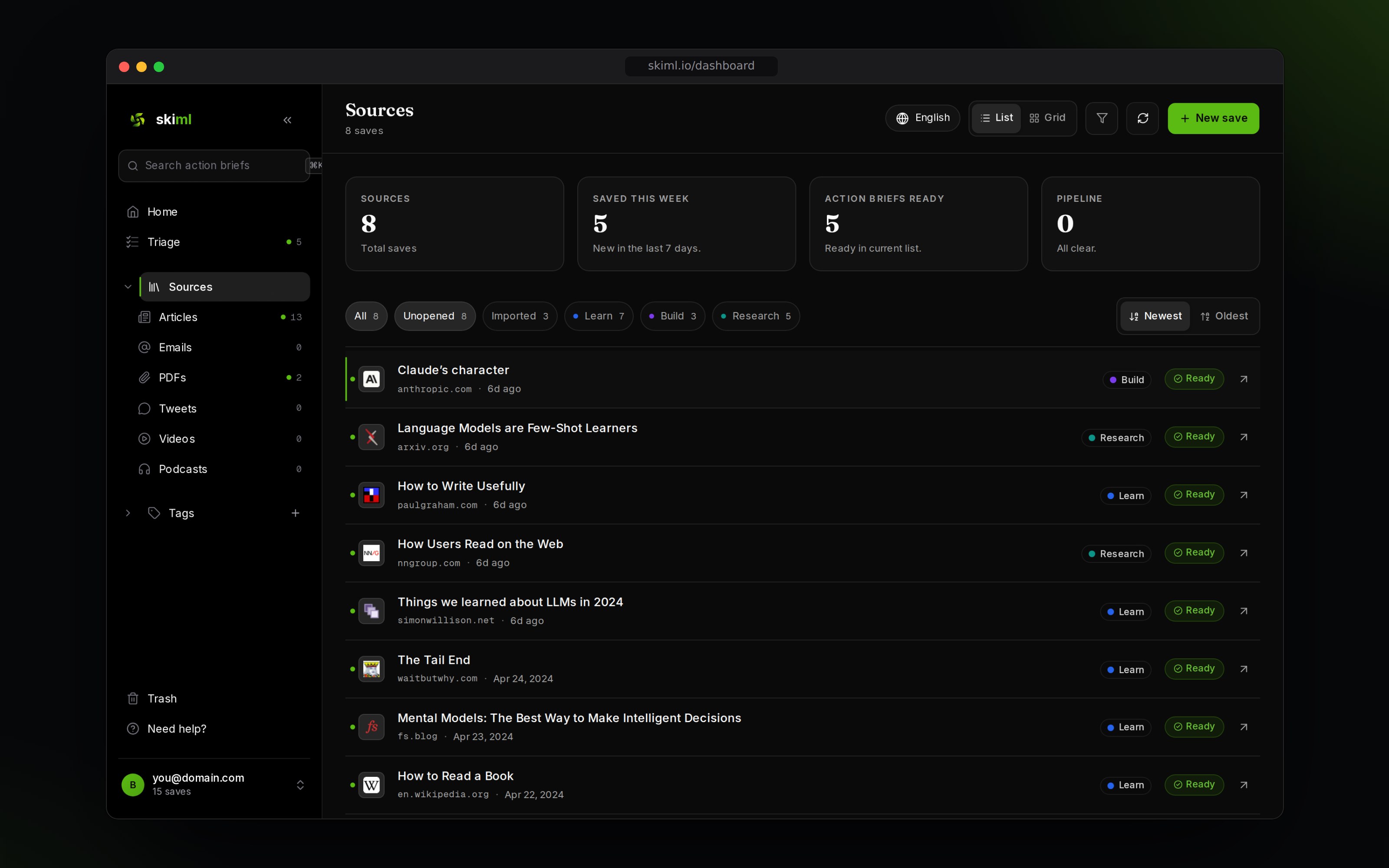
This is useful at the start of a session when you want to work through new material without older saves cluttering the view. It is also useful for a quick count: how big is the pile, actually?
The Imported filter
If you migrated saves from Pocket, Instapaper, Raindrop or Readwise Reader, they all land in the same library. The Imported chip pulls them into their own view.
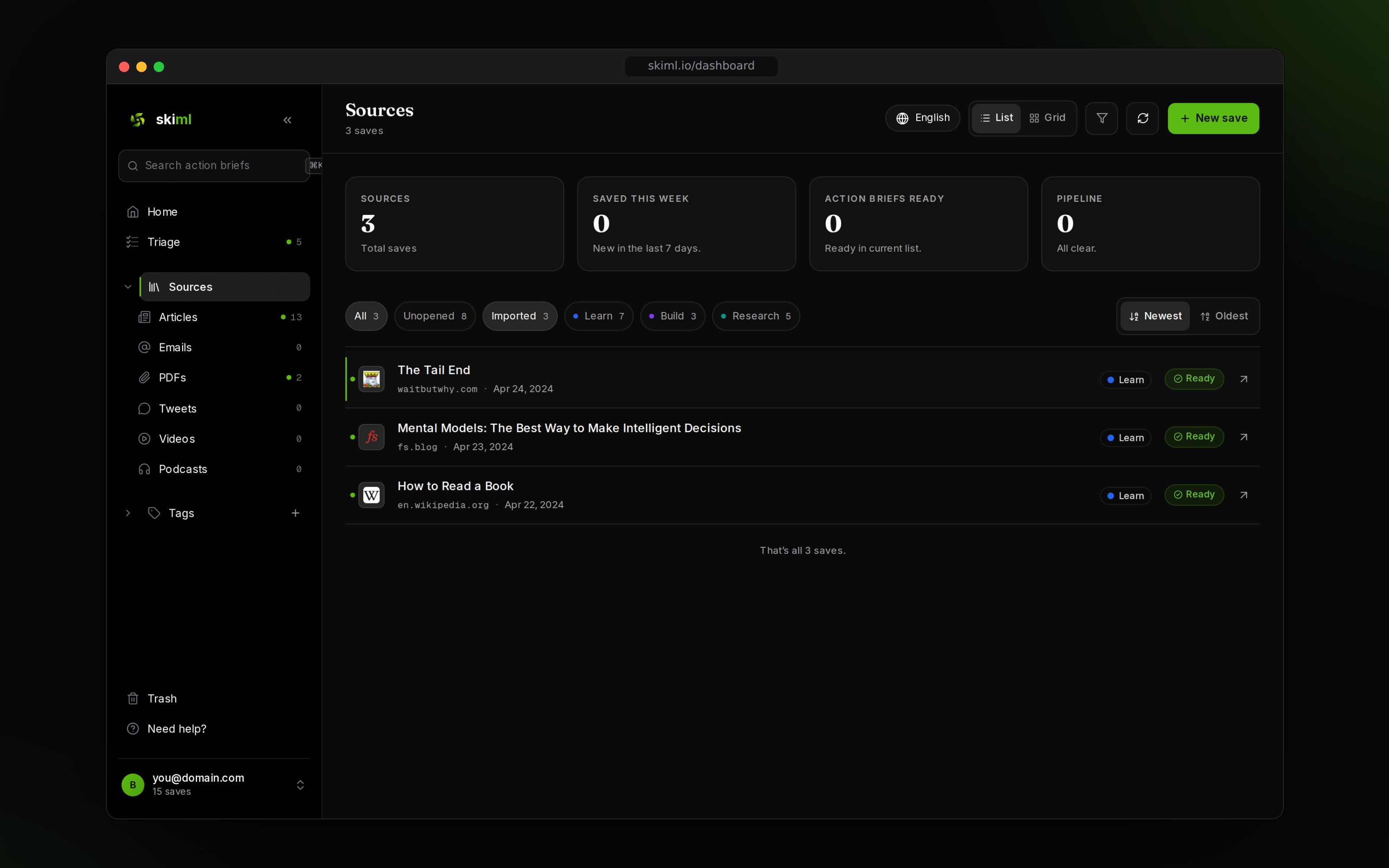
You can combine it with any other filter or tag. Imported saves tagged "research" from a specific source is a few clicks, not a workaround.
How to use the filters step by step
- Open your Skiml dashboard.
- Find the filter chips at the top of the library. You will see options including Unopened and Imported alongside your existing source and tag filters.
- Click Unopened to narrow the view to saves you have not yet opened. The chip highlights to show it is active.
- Click Imported to see everything brought in from another tool. Combine it with a tag or source filter by clicking those chips too.
- Look at the address bar. The current filter state is encoded there. Bookmark it, reload it, or copy it to send to yourself on another device.
That last point matters more than it might seem. A filtered view that survives a reload is a view you can actually rely on.
Persistent filter URLs and session handling
Before this release, applying filters and then reloading the page reset everything back to the default view. Now the URL updates as you filter, so your view is stable across reloads and shareable if you want to hand it to someone else on the same account.
On the session side: when a login expires mid-session, Skiml used to drop you on a generic sign-in page with no way back to what you were doing. Now it remembers the URL you were on, takes you through sign-in, and returns you to exactly that page. Small thing, but losing your place in a filtered view is annoying enough to be worth fixing.
Exporting a brief
The export option existed before, but it was scattered. In 1.4 it lives in one menu per brief, with Markdown, PDF and JSON as the three options.
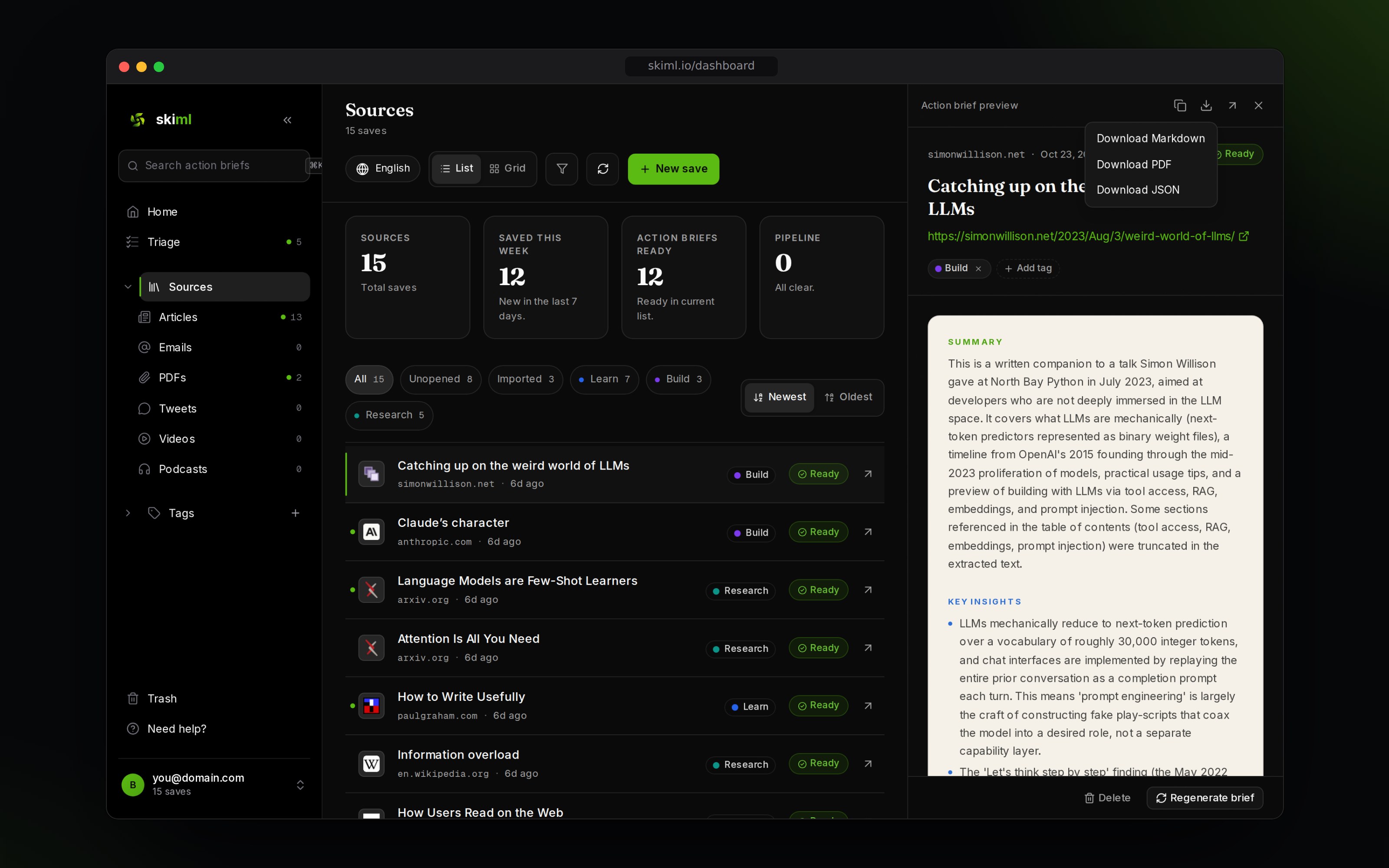
Markdown is useful if you paste briefs into notes. PDF is useful if you are sharing a brief with someone who does not use Skiml. JSON is useful if you are piping saves into another system or doing something programmatic with your data.
All three export the same content: the brief Skiml generated, in the format that fits your workflow.
What is worth trying first
If you have a backlog of imported saves that you have never properly sorted, start with the Imported filter combined with Triage mode. One key per save, sorted into Act, Reference or Archive, and the URL stays stable if you need to take a break and come back. That combination makes the backlog feel finite in a way it did not before.
The full list of what changed in v1.4 is in the release notes. If you want to try it on your own reading pile, add Skiml to Chrome.
If this resonated -
Download Extension →More from skiml
Skiml vs Readwise vs Pocket vs Notion Web Clipper: an honest comparison
Four tools for the stuff you save online, compared on the one axis that actually matters: do they help you decide what to do next? Includes where the one I am building is weaker.
Why skimmers don't highlight (and what read-later tools miss)
Highlighting feels like progress, but it rarely changes what you do next. Here's why skimmers skip it, what the research actually says, and what to do instead.
400 saved, 12 read - what I built after Pocket died
When Mozilla shut Pocket down in 2025, I migrated to Reader. Then to Raindrop. Then I gave up. Here's what I built instead - and why every read-later tool was solving the wrong problem.